AI is now an integral part of how software gets built. Software engineers use it to accelerate code generation, refactoring, debugging, and documentation. People without traditional software development backgrounds can also produce working prototypes and applications without relying on engineers.
This article offers a practical way for designers to write code with the help of AI through questions they ask most often: how to begin, how to improve output quality, how to validate against design intent, how to collaborate effectively, how to choose the right AI model, and which skills deliver increasing returns over time.

The most useful way to begin is to identify your starting point and your immediate goal.
Some readers already write code comfortably. For them, AI helps reduce context-switching and speed up everyday work: setting up a project, generating a first pass of an implementation, explaining unfamiliar parts of a codebase, and helping debug issues with less back-and-forth.
Others have limited coding experience. For them, the early win is often building something tangible quickly: a prototype that’s realistic enough to review, a small internal tool, or a lightweight proof of concept that brings project requirements to life.
Across both groups, the goal is the same: Their work should be easy for others to review, understand, and advance without much guesswork.
AI coding tools can be grouped by where they live while you work. Some live inside an editor, some run through the terminal, and some live in tools built for generating UI from a written description. Each category supports a different kind of pace and a different kind of output, so it helps to know what you’re reaching for before you start.
These tools focus on turning a written description into a UI draft quickly. They’re often used early, when the goal is to explore options, align on direction, and make conversations more concrete. Instead of debating an interface in the abstract, teams can react to something interactive and iterate from there.
Common examples include Figma Make, v0, Webflow AI-Site Builder and Lovable because they can produce UI drafts fast and make it easier to explore multiple approaches. A designer might generate two or three variations of a settings screen to compare hierarchy and content structure. A product manager might create a clickable flow to pressure-test the steps, labels, and decision points before engineering invests in a build.
These outputs tend to be strongest when they are treated as a starting point for discussion, and then translated into something concrete once the direction is clear.
.png)
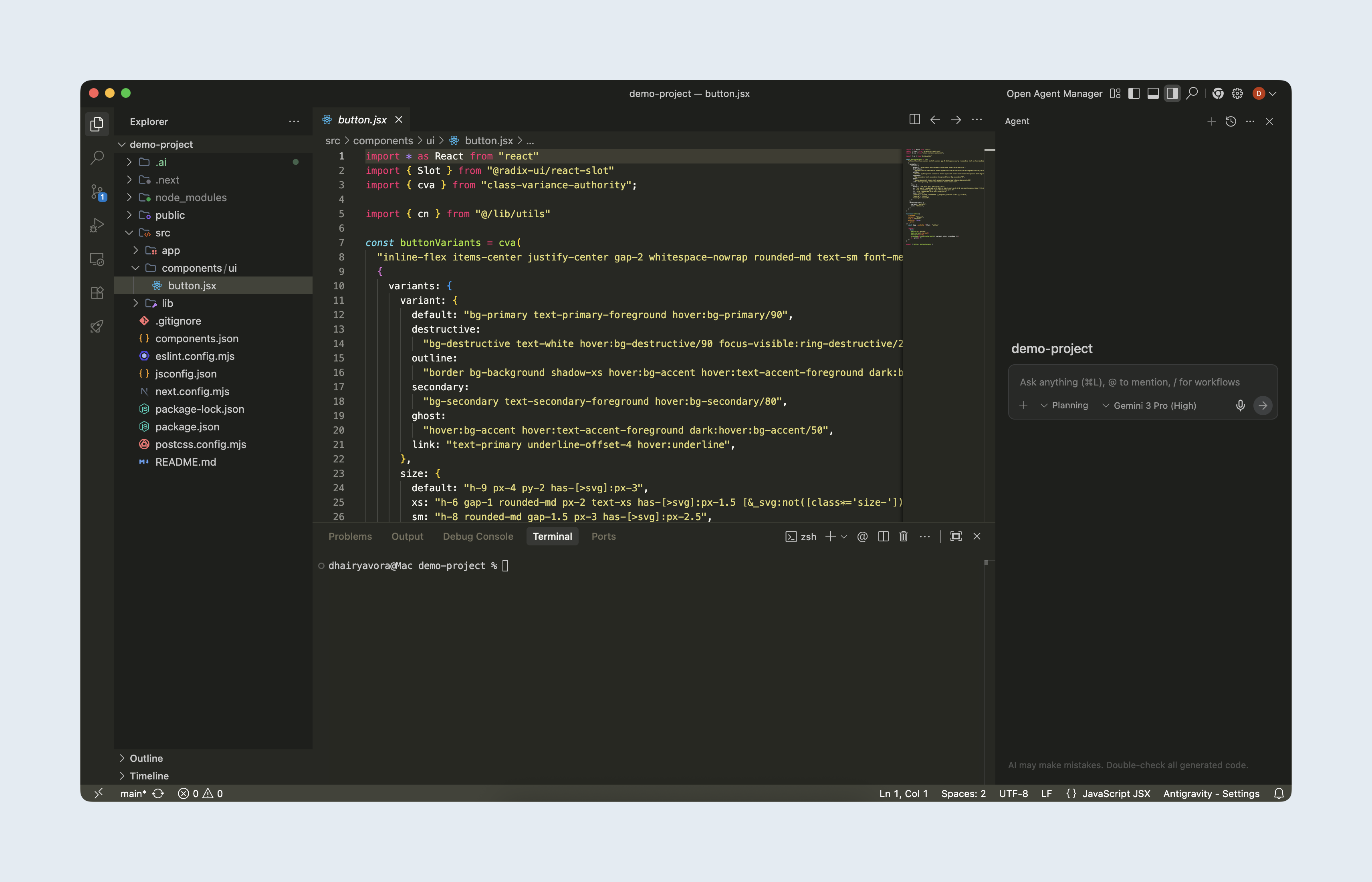
These tools live in an editor (or IDE: Integrated Development Environment) and work directly with project files. They are useful when you want AI support while you’re working on real code, even if you are not writing every line yourself. For designers, this often shows up when you are building a prototype that needs to feel “real” enough to review, or when you are making small UI changes and want the AI to follow the same patterns used elsewhere in the project.
A typical example is updating a component that appears in many places, such as a button or form field. An IDE assistant can find every place that component is used, suggest the changes needed to support a new state like loading or error, and update those usages consistently. Another example is polishing a UI flow end-to-end. You might adjust spacing and typography on a few key screens, then rely on the IDE assistant to apply the same adjustments across similar screens so the UI stays consistent.
Tools like Cursor & Google Antigravity come up often in this context as they can work across multiple files while keeping changes visible and easy to review.
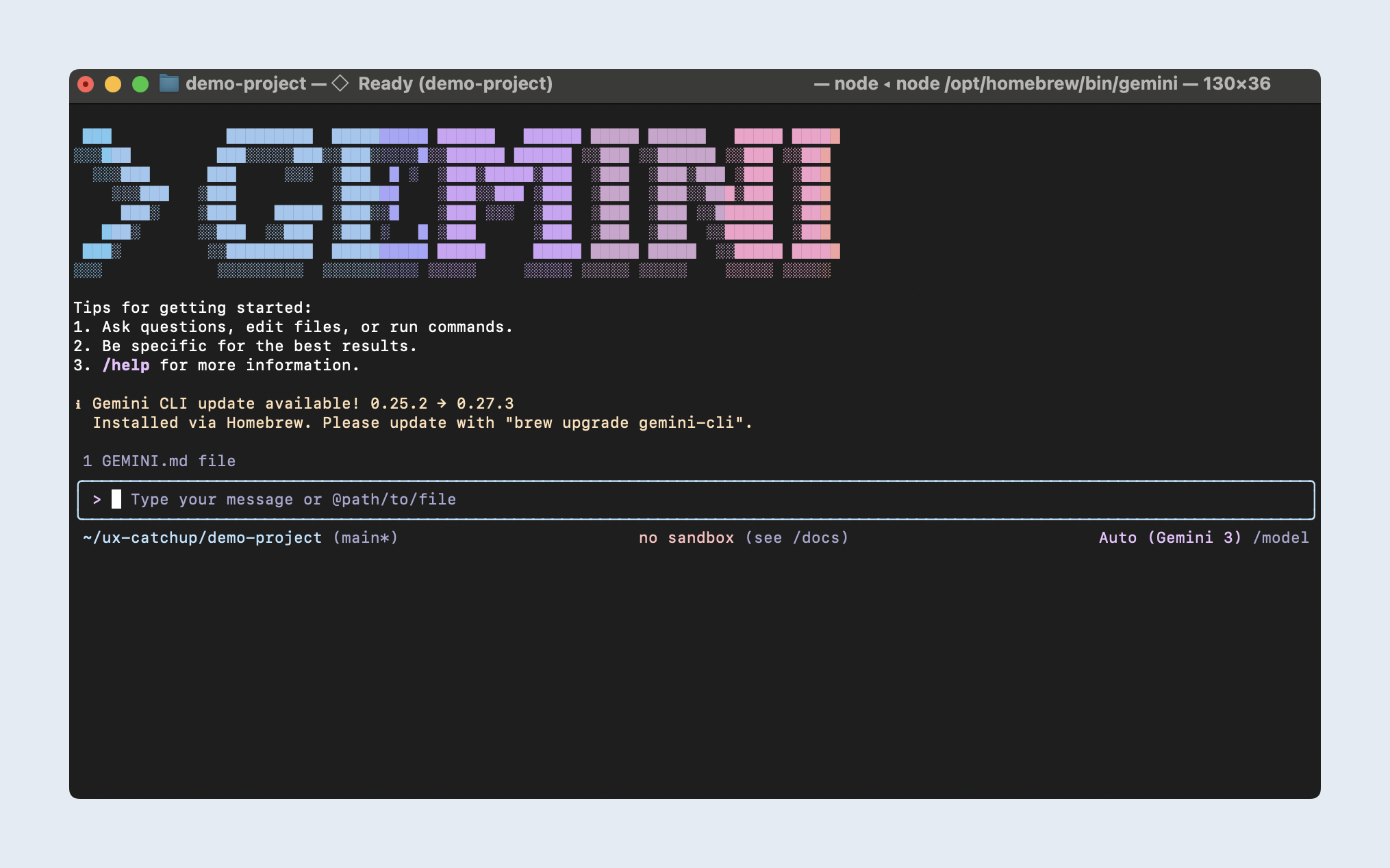
Terminal tools are often used through simple back-and-forth instructions, and they can be surprisingly approachable even for people who prefer not to work inside code all day. They fit workflows where you want to describe the outcome, run a command, and iterate quickly based on what the computer reports back.
This is where “vibe-coding” often shows up: generating a small prototype, running it locally, asking the tool to fix what breaks, and repeating until the experience is good enough to share. In many cases, that progress happens with minimal time spent reading or editing code. Thus, the terminal becomes a simple cycle of trying, observing, and adjusting.
Tools like Claude Code, Gemini CLI, and Codex CLI tend to come up in this category because they are built for that command-driven approach.
An AI model is the underlying system that powers an AI tool, essentially interpreting inputs and generating relevant outputs. Different models behave differently: some are faster, some handle longer context better, and some follow constraints more reliably.
For design work, two qualities tend to matter most. The first is how reliably a model follows constraints. If you tell it “use our design system,” “do not add new libraries,” or “match this existing component pattern,” the output should stay within those constraints. This matters when you’re generating UI that needs to look and behave like the rest of the product, and when you’re working within a client’s stack where small deviations create friction later.
The second is how well it stays grounded in the material you provide. Many tasks look easy until they involve real context: an existing code repository, a longer spec, or a complicated set of component rules. Models that keep referring back to your files, examples, and constraints will save time because you spend less energy correcting mismatches.
This is also where specific model choices start to matter in day-to-day work. Teams often reach for Claude Sonnet 4.5 for steady iteration and everyday coding support, and step up to Claude Opus 4.6 when the task is longer, more complex, or less tolerant of mistakes. For quick UI drafts, variations, and early exploration, Gemini 3 Flash is often used when speed matters. When the request is more involved, such as stitching a longer flow together or reasoning through tradeoffs, Gemini 3 Pro can be a better fit.
.png)
Many platforms also offer a choice between faster output and deeper reasoning (planning) modes. Deeper reasoning is useful when the problem is messy, requirements are unclear, or changes touch multiple parts of a system. Faster modes tend to work well for first drafts, UI variations, and straightforward edits.
A simple way to evaluate this is to try the same task in your real working environment, then see which model produces output that matches your constraints with the least back-and-forth.
AI is sensitive to ambiguity. The most disappointing outputs come from missing context, unclear goals, or unconstrained authority. High-quality outputs come from giving the model a clear input.
One of the easiest ways to improve results is to stop starting from zero every time. A sidekick is a dedicated project thread where you give the model a persona and enough context to behave like a reliable partner across the life of the work. The persona matters because it sets the bar for how the model thinks and what it prioritizes. The context matters because it reduces repeated explanation and helps the sidekick stay aligned as the project evolves.
A sidekick prompt can be simple, but it should be specific about role, standards, and how it should respond. For example:
.png)
Once that thread exists, you feed it what you already have: the project brief, relevant designs, any existing code patterns, and constraints from engineering. Over time, the sidekick becomes useful in very practical ways: it can help you plan an approach, explain unfamiliar code, anticipate edge cases, draft a first pass, and help you recover when something breaks.
.png)
Work rarely stays in one place. You might explore ideas in a chat tool, build in an IDE, and validate in the browser. Context gets lost during those transitions, so it helps to translate what you learned into a short handoff that fits the next tool.
In practice, that can be as simple as asking your sidekick to summarize the current state into a short brief that is formatted in the form of a prompt which you can paste into your IDE agent: what you’re changing, what needs to stay consistent, what the success criteria are, and what decisions have already been made.
If you work with engineers, use that to your advantage. Ask for a clean foundation: repo setup, dependencies, formatting rules, component patterns, test configuration, and any non-negotiables the team expects. This removes early-stage friction and lets you focus on UX and implementation quality.
Starting from that foundation lowers risk for beginners and increases speed for experienced builders. It also improves collaboration because the resulting code looks familiar to the team.
If you want consistent output, you need explicit constraints. Communicate them early and keep them stable.
Constraints work best when they live somewhere the team can reference, not just inside a conversation. One practical approach is to keep them in the repo as markdown files. This helps in two ways: humans can review them, and an IDE agent can follow them consistently because they’re part of the project context.
A lightweight example could look like this:
.png)
Constraints can be company-level (design system usage, accessibility expectations, data handling requirements, repository conventions and the acceptance criteria for changes), project-level (client constraints, dependencies allowed, project requirements), and personal-level (how you want tasks broken down, what you want validated, how you want changes communicated).
This is one of the best ways to keep output clean and collaborative, especially when multiple people touch the same code.
AI can generate UI quickly but shipping still requires verification against design specs, especially when details like spacing, typography, tokens, states, and accessibility behavior need to match consistently.
One approach is manual comparison with original designs, or to review the built UI in the browser using DevTools alongside the design file. This catches the details that matter to users: spacing and layout, typography, token usage, focus treatment, component states, and responsive behavior. When you find deltas, document them and feed them back to the agent as targeted corrections.
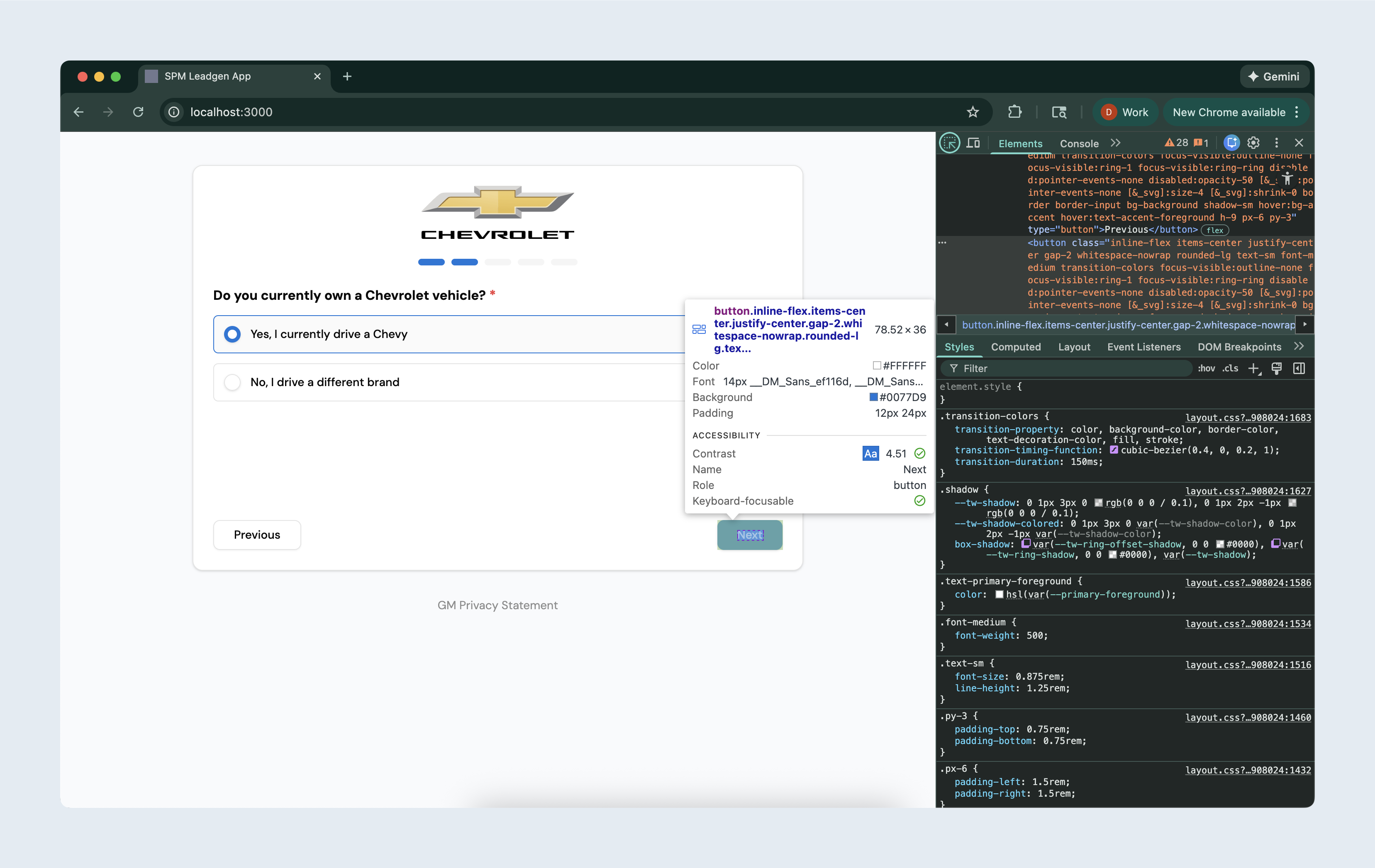
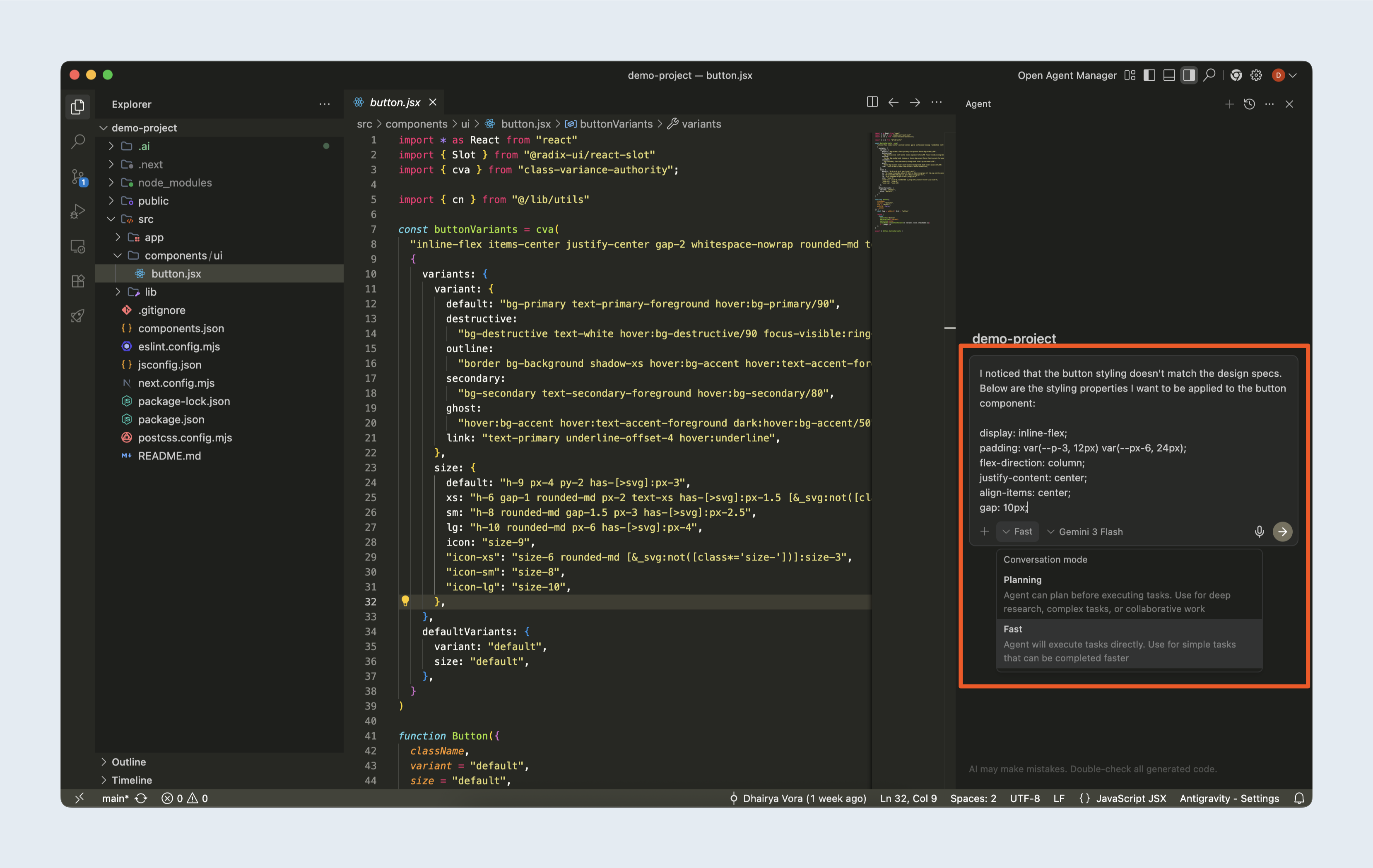
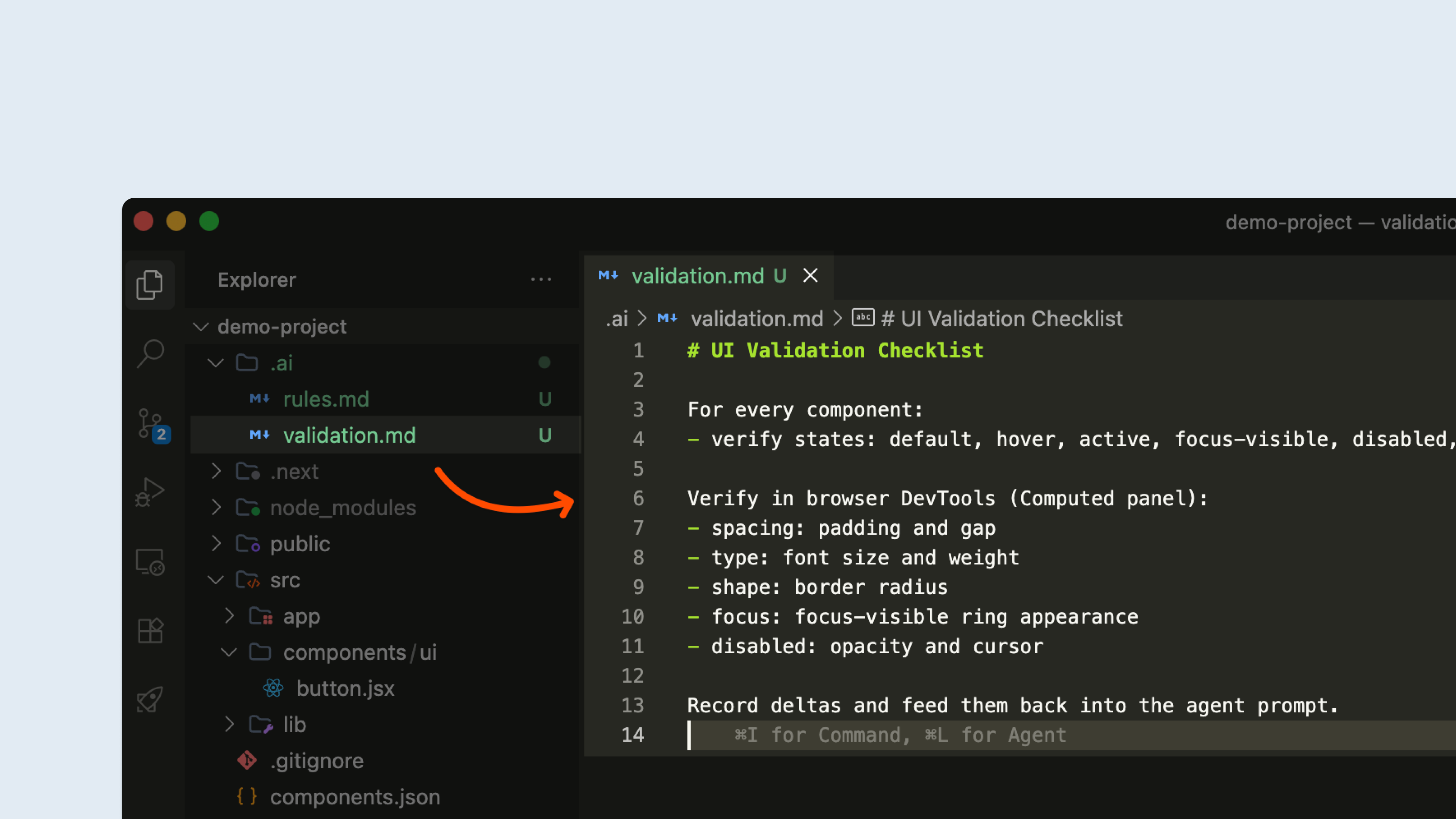
Agent-assisted validation can help when requirements are described in a way the agent can check. For example, if you define the expected states of a component and the key properties that should remain consistent across those states, an agent can scan the implementation, point out mismatches, and propose targeted fixes. This supports the review process by catching gaps faster, while the final judgment still stays with the people shipping the work.
A lightweight example could look like this:
Some people also ask whether it helps for designers to understand code. The answer is yes, because it speeds up diagnosis and reduces reliance on others. Understanding does not need to be deep. The most valuable skill is the ability to read diffs, identify where styling is defined, and recognize constraints. That level of literacy makes prompts more precise and reviews more fast.
Collaboration improves when conversations are anchored in something people can run or interact with. Static mocks are useful, but they hide the parts that usually break in real use: loading and error states, long content, keyboard navigation, and responsive behavior. AI makes it easier to create that kind of artifact earlier, whether it’s a clickable prototype, a lightweight playground page, or a preview build tied to a branch.
For designers and product managers, AI can make feedback cycles more realistic. A runnable branch, a deployed preview, an interactive prototype or a playground page often surfaces issues that static images miss. Teams start discussing states, edge cases, content scaling, accessibility, and performance earlier because the artifact behaves like a product.
For engineers, collaboration improves when AI-supported contributions stay easy to review. Smaller pull requests with a clear summary, a narrow scope, and a quick note on how changes were verified are easier to trust and easier to merge. When changes are large or loosely described, review becomes slow, regardless of whether AI was involved.
The goal is shared clarity i.e. an artifact people can inspect, changes people can follow, and decisions people can trace.
AI reduces the barrier to entry, yet it rewards foundational skills. The most useful skills to learn are the ones that reduce uncertainty in a production environment.
Git basics, reading pull requests, understanding folder structure, and using DevTools effectively provide immediate leverage. Comfort with UI states, accessibility basics, and writing clear acceptance criteria helps teams steer AI toward correct outcomes. Familiarity with one IDE agent and one terminal agent expands what can be automated safely without losing track of what changed.
These skills strengthen confidence in product delivery across roles. Designers gain more control over implementation details and can validate behavior earlier. PMs communicate requirements in a way that maps cleanly to working software. Engineers offload repetitive work while keeping changes easily reviewable. These skills make AI output easier to steer, verify, and share across a team.
At Perpetual, we use AI as part of our day-to-day workflow across product, design and engineering. It helps us move quickly, amplify collaboration across functions and focus effort towards work that matters most.
If you’re looking for a team that already works this way, feel free to reach out!